Sign Up
System Requirements
Section titled “System Requirements”inLOGIC is a web-based application. With the Internet connection, you can have access to the system wherever you are in the world, anytime you want. To start with inLOGIC, the following are the minimum requirements:
- High-speed Internet connection
- Web browser (e.g., Internet Explorer, Chrome, Firefox, etc.)
Creating a New Account
This section shows you how to create a new account as an Administrator User
Type in https://apps.inlogic.ca in your browser address bar

Click Create New Account? link
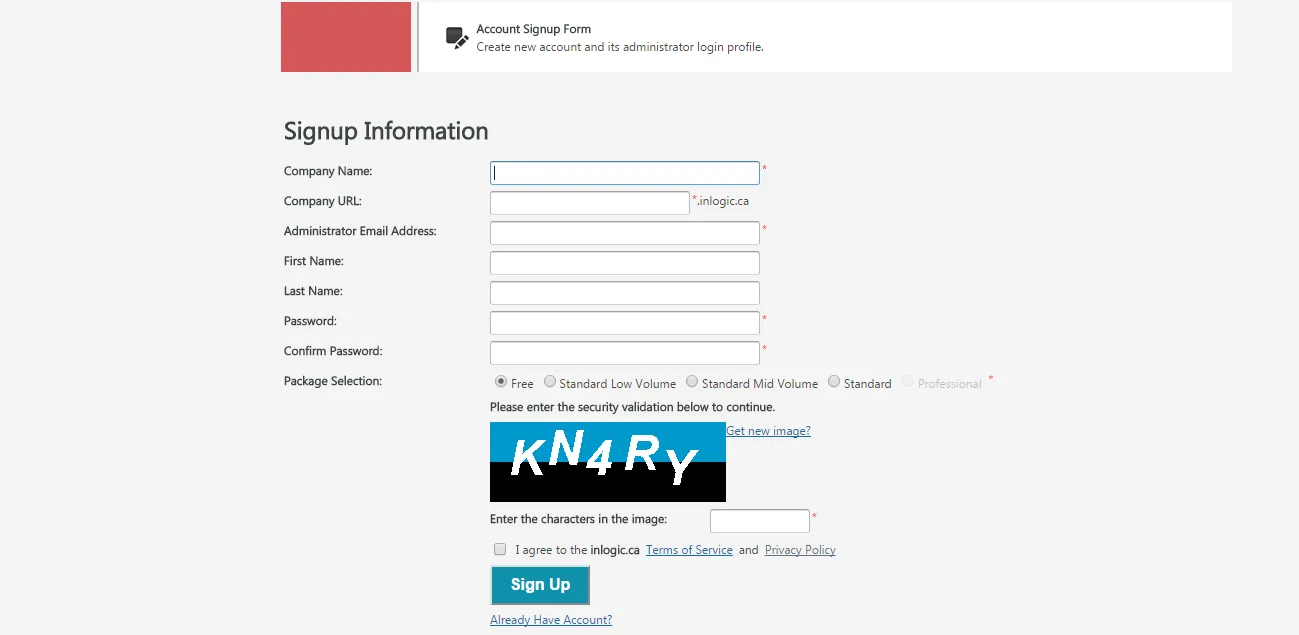
Fill out the form and after reading the Terms of Services and Privacy Policy carefully, click Sign Up button
Email Activation
Section titled “Email Activation”As soon as you click the Sign Up button, you will receive an email from us with an activation link. Follow the link provided, and the page will be forwarded to the initial log in page.
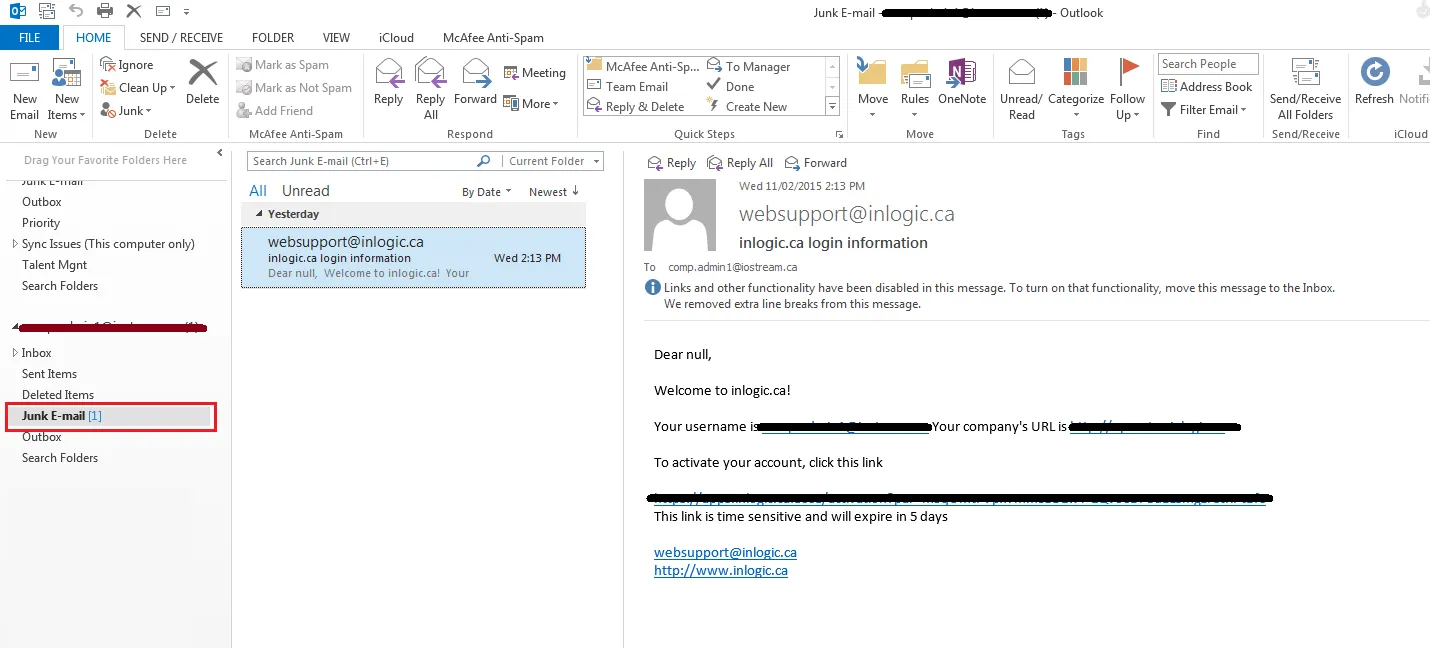
Initial Login
Section titled “Initial Login”The activation link will take you back to the landing page of the application.
Front Page at First Time Access
Provide the information required:
- Company URL
- This URL is unique to your organization. Once registered, users can login to the system using the company URL. Make sure to add this to the bookmark bar in your browser. (e.g., company.inlogic.ca).
- User or Administrator Email Address
- When you have more than one administrator, you can add and manage administrator users in Administrator User Management.
- Password
Administrator User Menu
Section titled “Administrator User Menu”
When logged in, you will find the top menu bar that displays the Username, Import shortcut menu, and the buttons for Setting, Help , and Logout.
The Administrator User Menu looks different from the one of Regular Users’ since they have different level of access for security purposes. If you are a Regular User please go to Regular User page.